Settings
Click the gear icon in the top-right corner of the main window to open Settings, with five pages on the left: General, Notifications, Network, Storage, About.
General
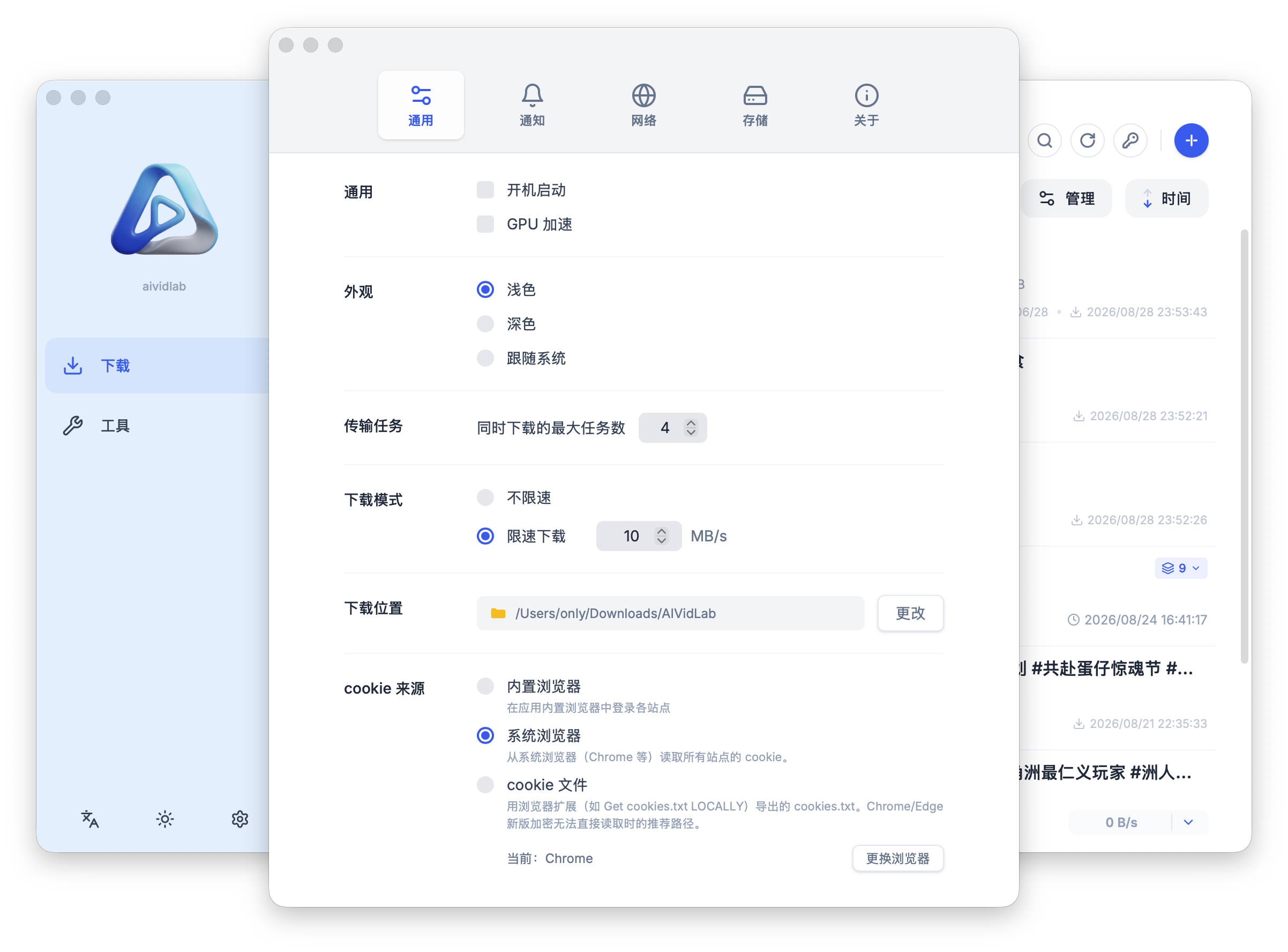
Transfer Tasks
- Max simultaneous download tasks: the limit on downloads running at the same time; default is 4, adjustable based on your network and disk.
- Download mode: unlimited speed, or limited speed (with a custom MB/s cap).
- Download location: the folder where videos are saved; click "Change" to pick a different one.
Cookie Source
The switcher for the three login methods. After selecting "System browser", it shows the browser currently in use (e.g. "Current: Chrome"); click "Change browser" to switch to Edge, Firefox, and others.
For details on each method, see Video Download → Logging In to Sites and Cookies.
Other
- Launch at startup: run aividlab automatically at login.
- GPU acceleration: speeds up interface and playback rendering; try turning it off if you see display glitches.
- Appearance: light / dark / follow system (the main window's top-right corner also has a quick light/dark toggle button).
Notifications
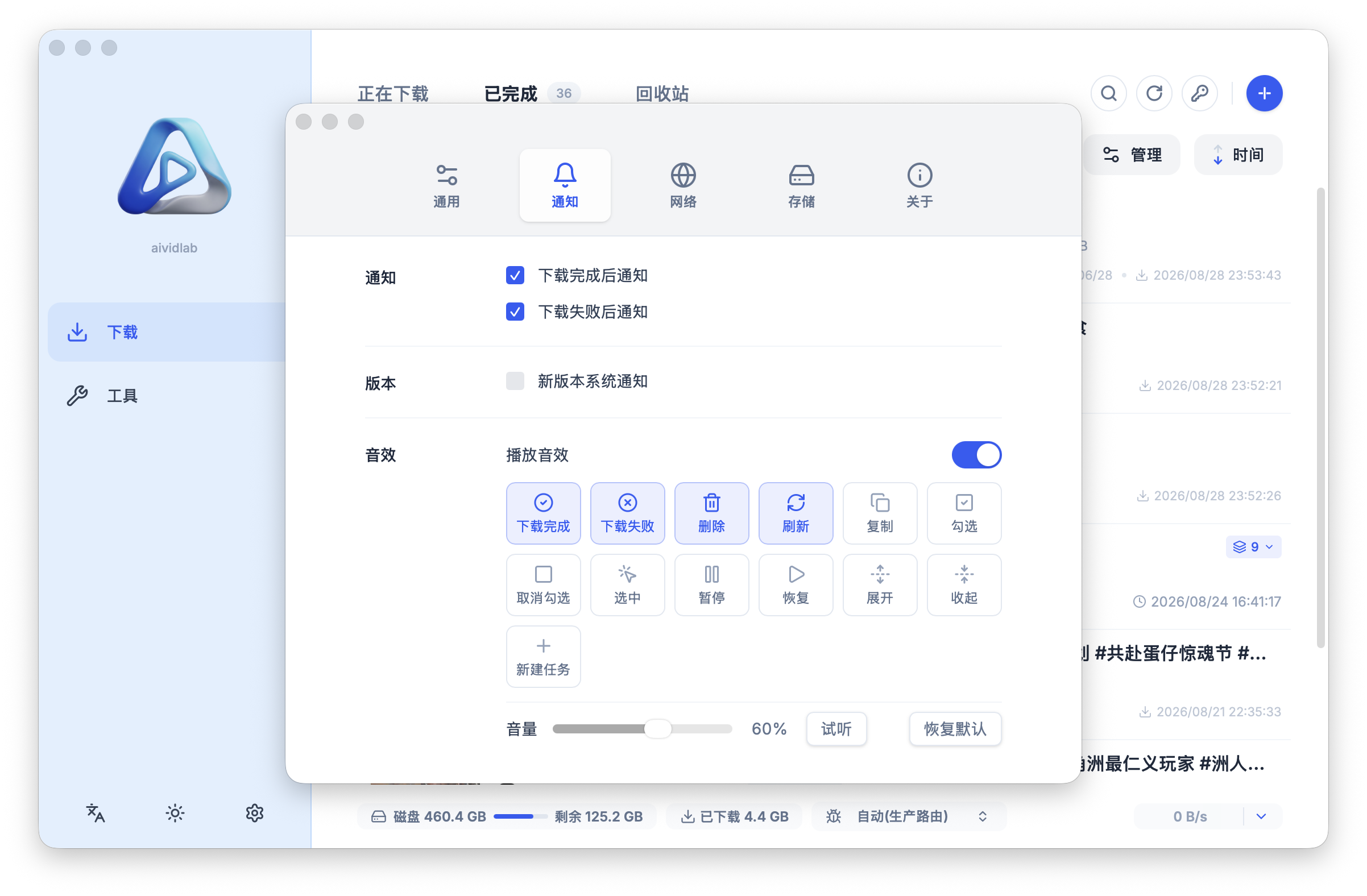
- Notify when download completes / Notify when download fails: send a system notification when a task finishes.
- New version system notification: get a system notification when a new version is available.
- Sounds: enable a separate sound for download complete, download failed, delete, refresh, and other actions, with volume control and a "preview" option, plus a one-click "Restore defaults".
Network
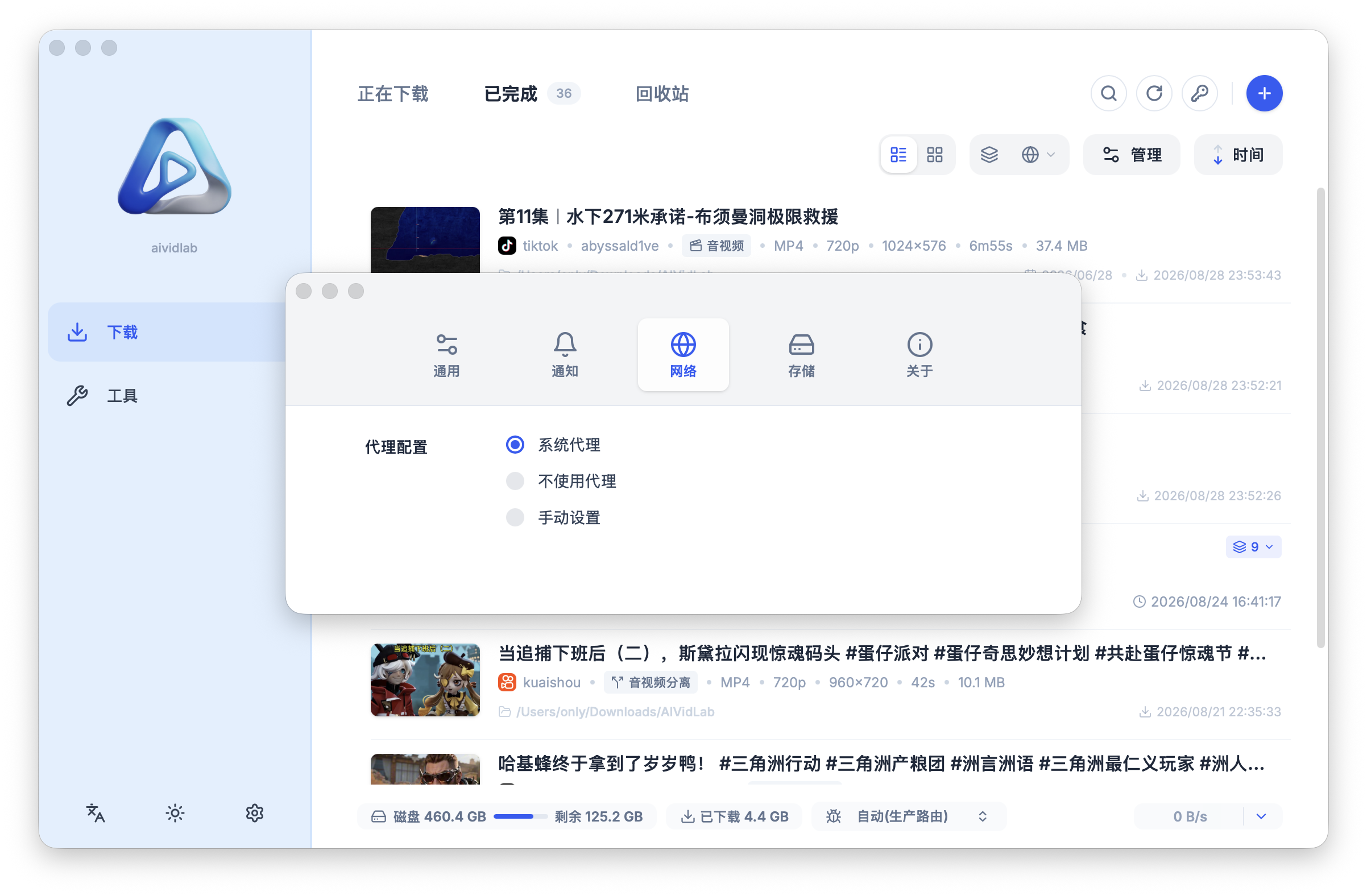
Three proxy options — pick one:
- System proxy (default): follow the operating system's proxy settings.
- No proxy: all requests go direct.
- Manual: enter the proxy server address yourself.
If parsing or downloads fail on a corporate network or other special environments, try adjusting the proxy settings here.
Storage
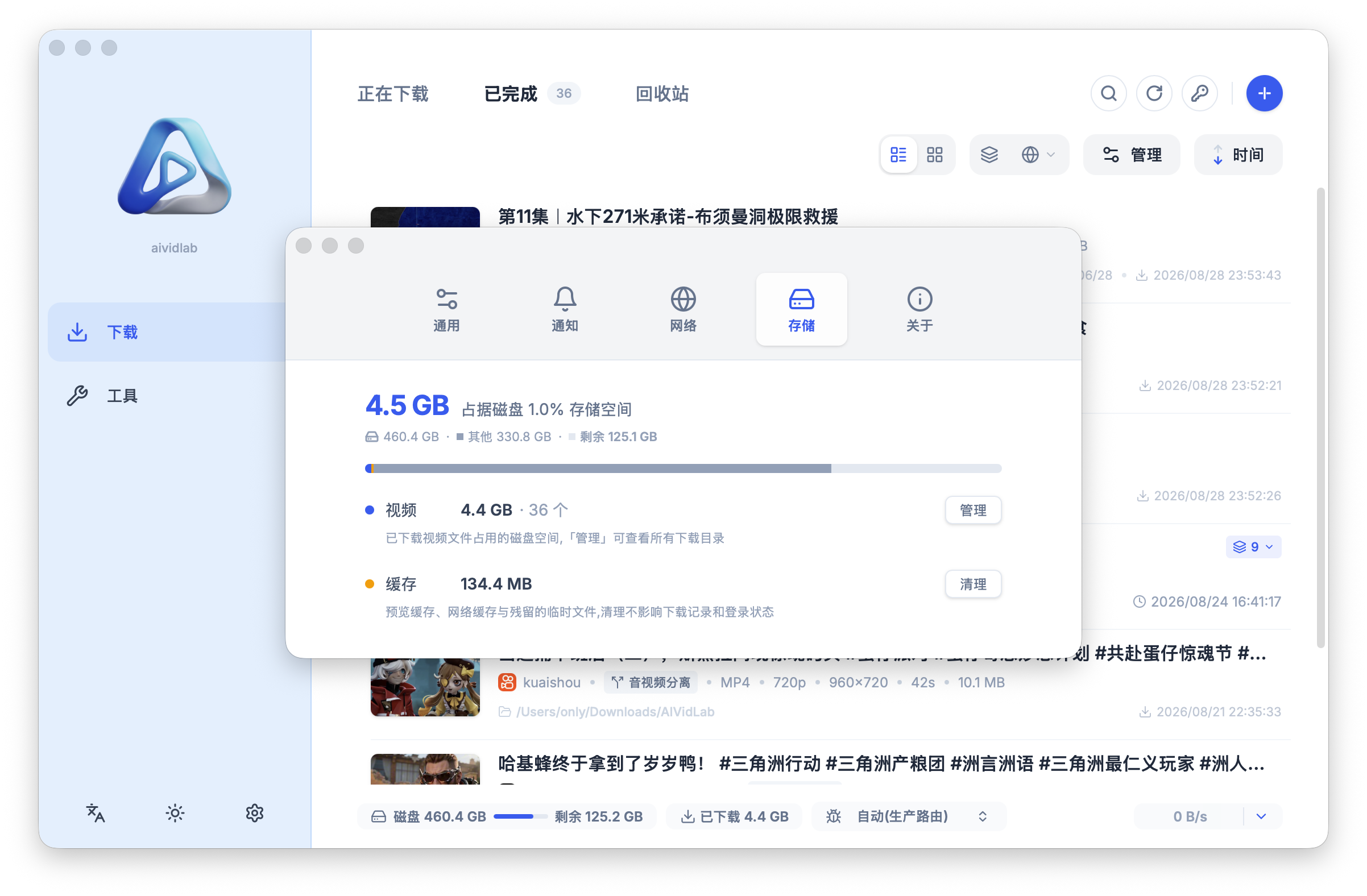
The top shows an overview of disk usage for the disk holding your download folder (used / other / free).
Video Directory Management
Click "Manage" next to "Videos" to open the video directories page, which summarizes all downloaded videos by folder:
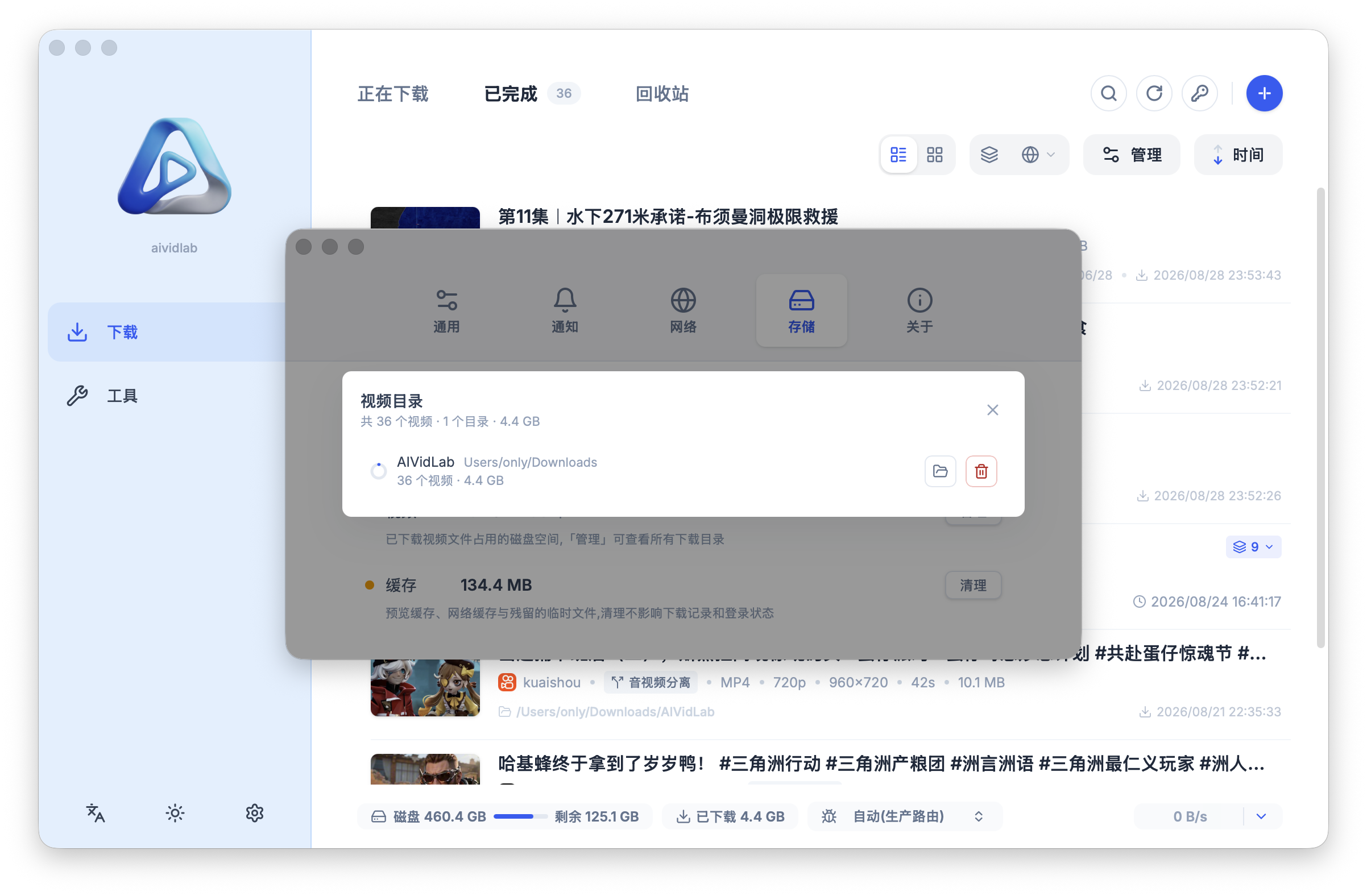
- Stats at the top: total videos, total directories, and overall size used.
- Each directory card shows its path, share of disk usage, and video count, with two actions on the right:
- "Open": open the directory in your file manager.
- "Clean": delete all videos in that directory along with their download records. A confirmation dialog pops up listing how many videos and how much data will be deleted; the deletion only runs after you click "Delete". This cannot be undone, so double-check before proceeding.
Cache Cleanup
Click "Clean" next to "Cache" — a dialog first shows how much cache will be removed, and cleanup starts after you confirm (this cannot be undone). When it finishes, the app tells you how much space was freed.
The cache includes preview caches, network caches, and leftover temporary files; cleaning the cache does not affect download records or login sessions.
About
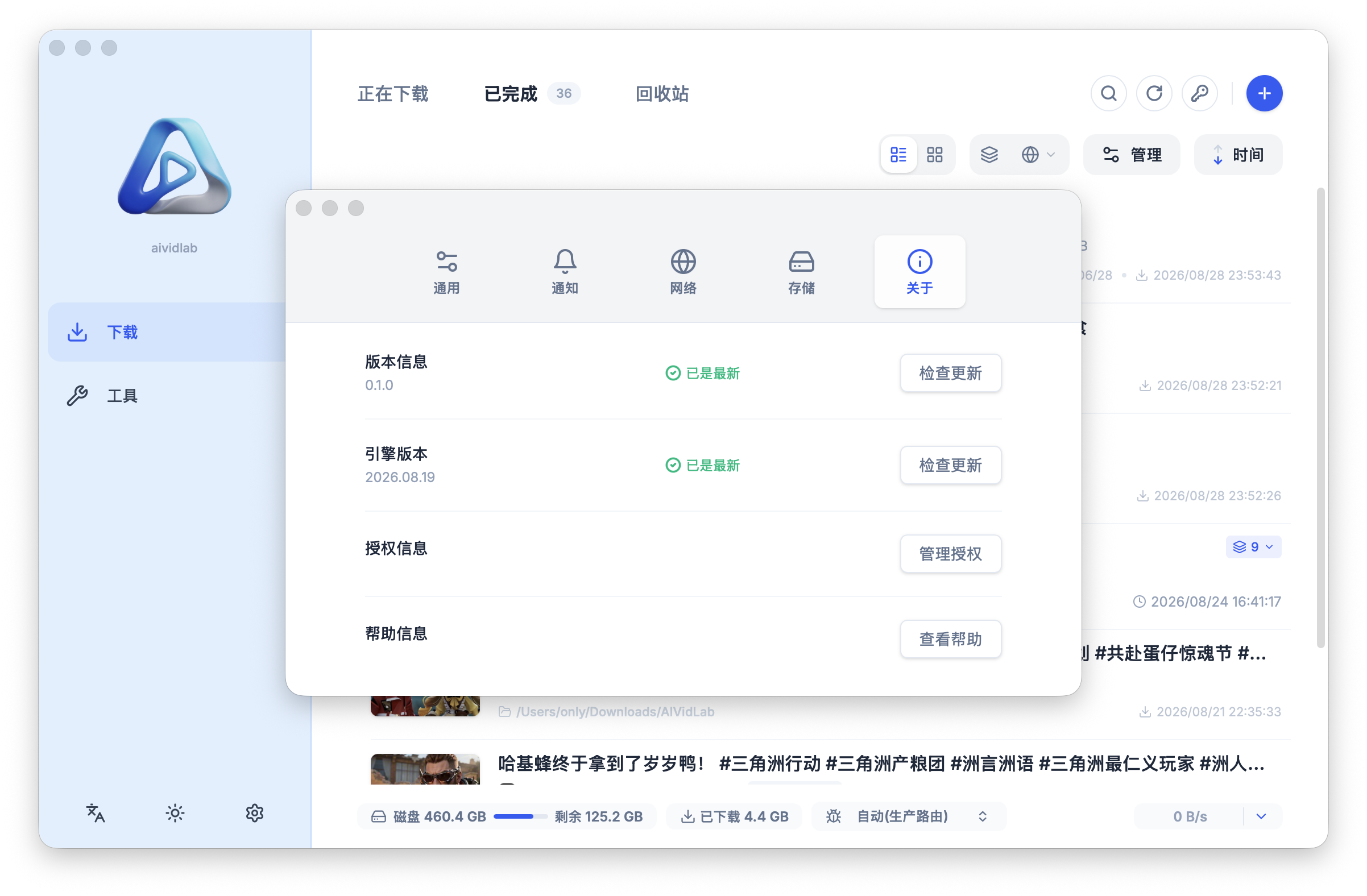
- Version info: the current app version; click "Check for updates" to check manually.
- Engine version: the version of the download component, also with update checking.
- License info: manage your license.
- Help info: open the help documentation.