Video Download
General Download Steps
The whole flow takes just three steps: copy the link → create and parse a task → pick a quality and download.
- Copy the video page link in your browser or video app.
- Back in aividlab, click the "+ New Task" button in the top-right corner.
- Paste the link into the input box and click "Parse Link".
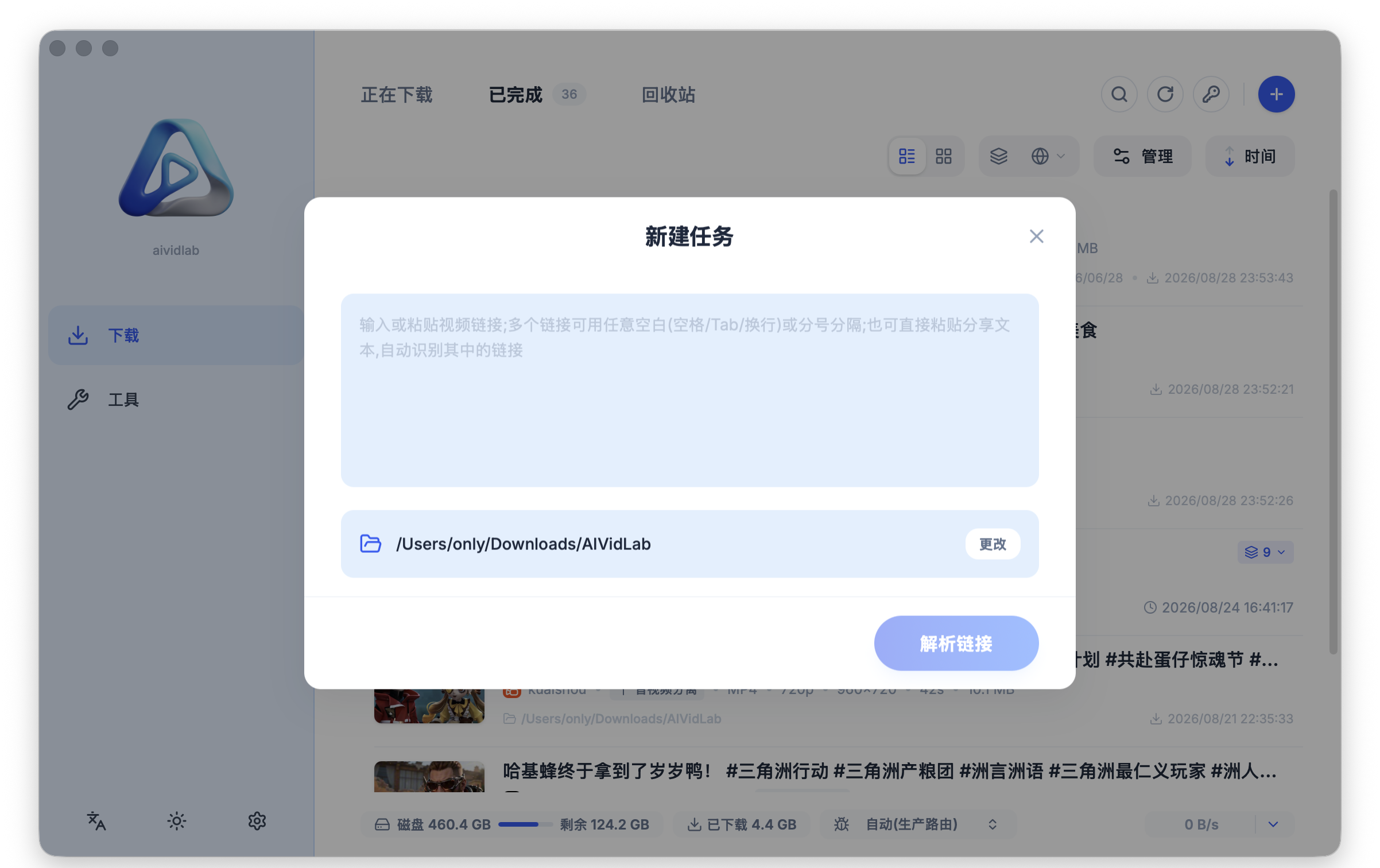
The input box accepts multiple links at once (separated by spaces, line breaks, or semicolons). You can also paste the share text copied from apps like Douyin or Kuaishou via "Share → Copy Link" — the link is detected automatically.
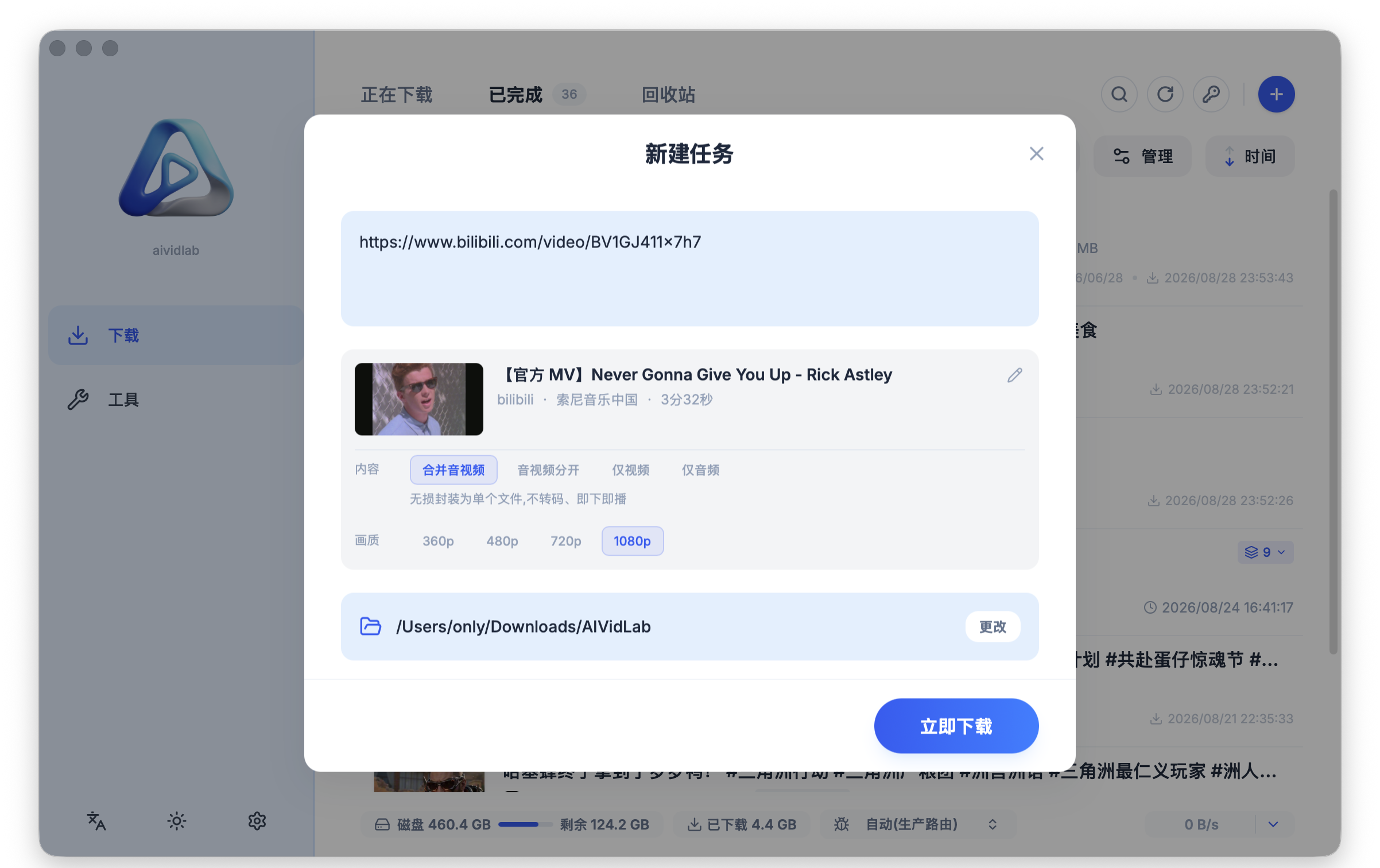
- Once parsing finishes, the video title, author, and duration are shown. First choose the "Content":
- Merge audio and video (recommended): losslessly packages everything into a single file — no transcoding, playable right after download;
- Separate audio and video / Video only / Audio only: pick as needed.
- Choose the quality (e.g. 360p / 480p / 720p / 1080p).
- Confirm the download location (by default a folder named AIVidLab inside your Downloads folder; click "Change" to adjust).
- Click "Download Now".
Managing Download Tasks
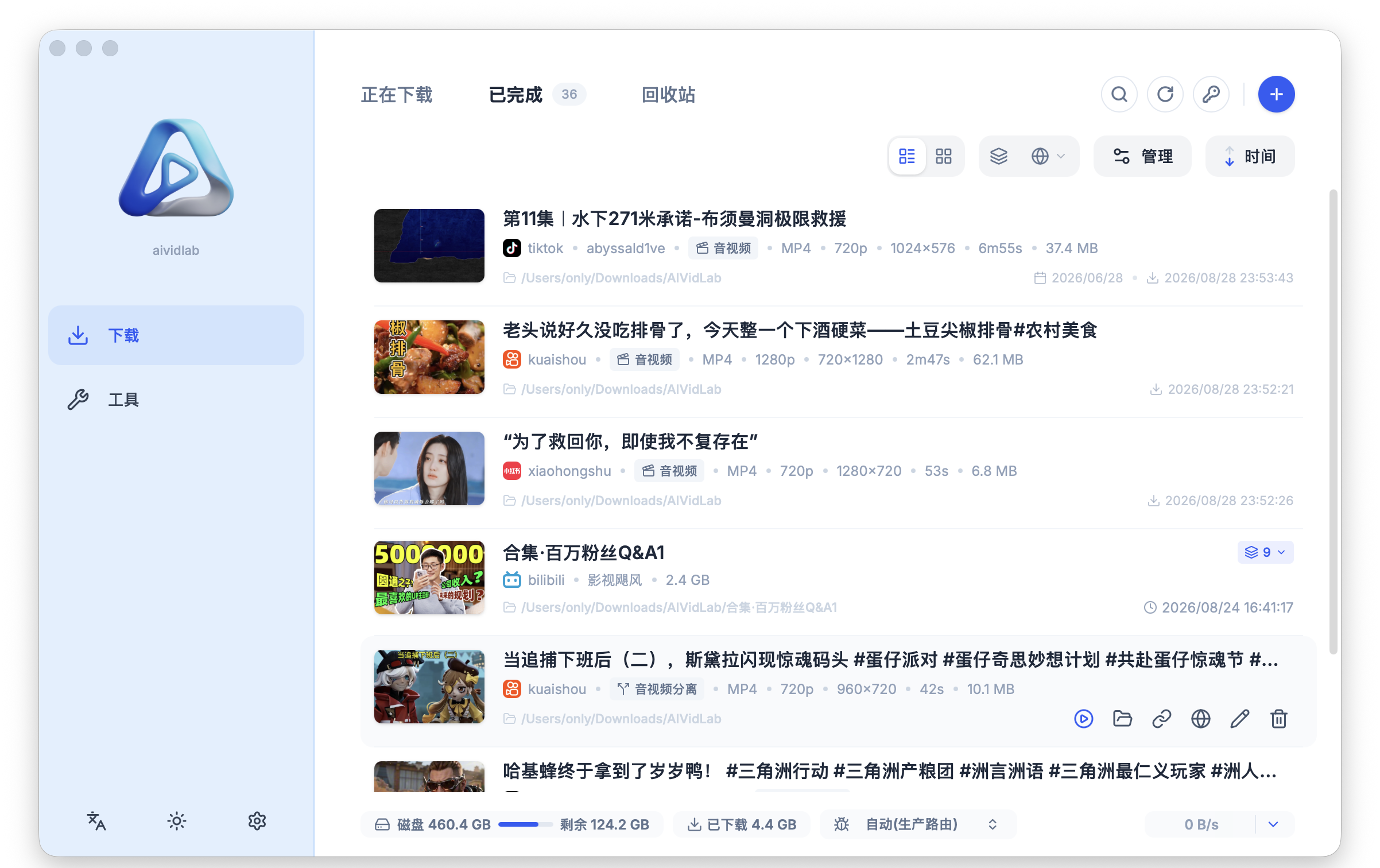
- Three tabs at the top: Downloading / Completed / Trash (deleted tasks are kept for 30 days and cleaned up automatically after that).
- Tasks in "Downloading" can be paused / resumed / deleted; completed tasks can be played, opened in their folder, and you can copy the link or rename them.
- Both list and grid views are available; filter by site or time, or search titles directly.
- Multiple tasks can download at the same time without interfering with each other. Concurrency and speed limits are configured under "Settings → General → Transfer Tasks" (click the gear icon in the top-right corner to open Settings):
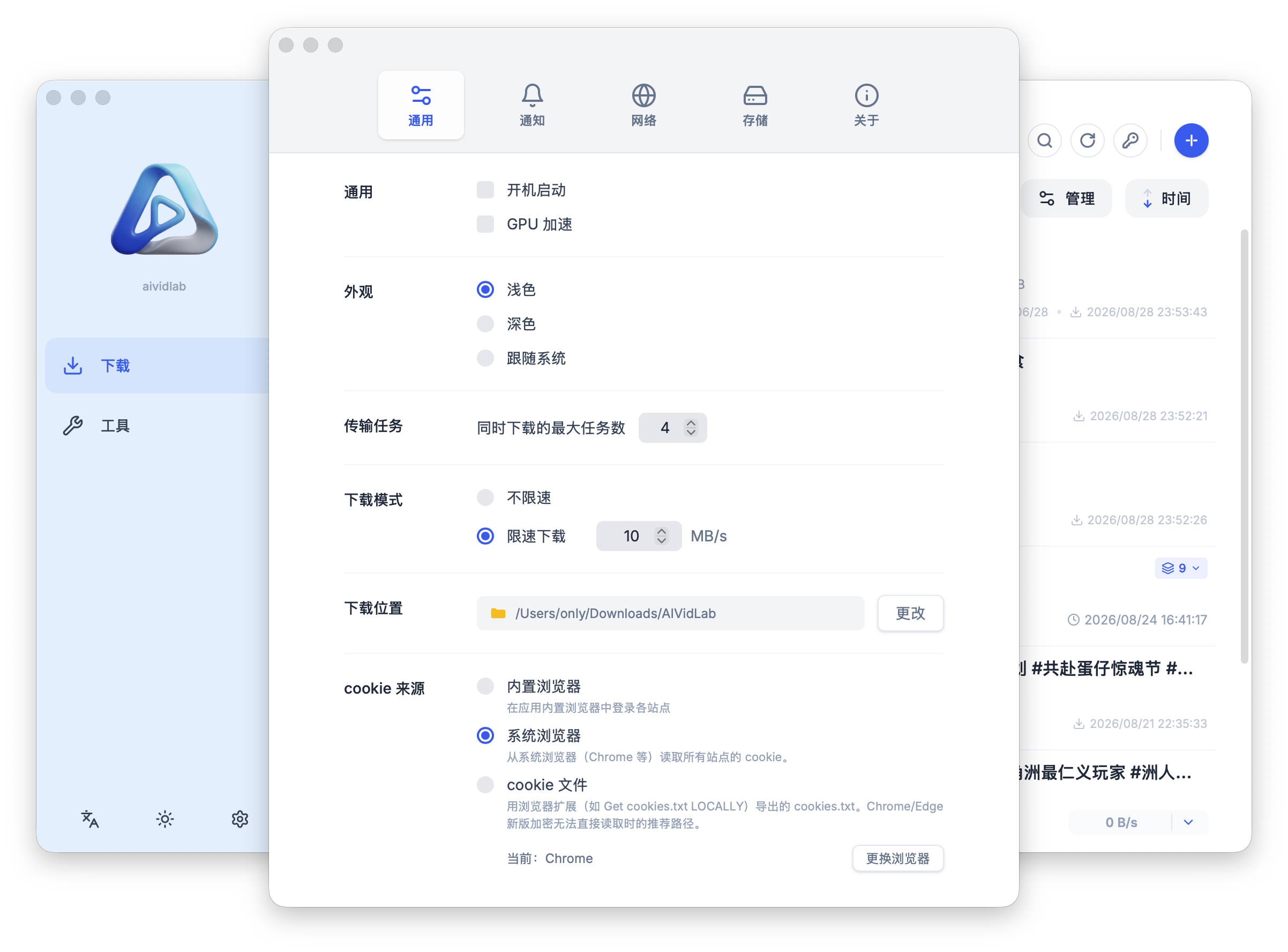
- Max simultaneous download tasks
- Download mode: unlimited speed / limited speed
- Download location
- The bottom of the window shows the free disk space and the current download speed in real time.
Logging In to Sites and Cookies
Not all content can be downloaded without logging in. If parsing fails, asks you to log in, or the quality list is incomplete, log in to the site first and try again. You can also switch the cookie source to a system browser you're already logged in with, so you don't have to re-enter your credentials. Click the "Browsers" button at the top to open the login and cookie management panel, where you can switch login methods and view or clear login sessions for each site.
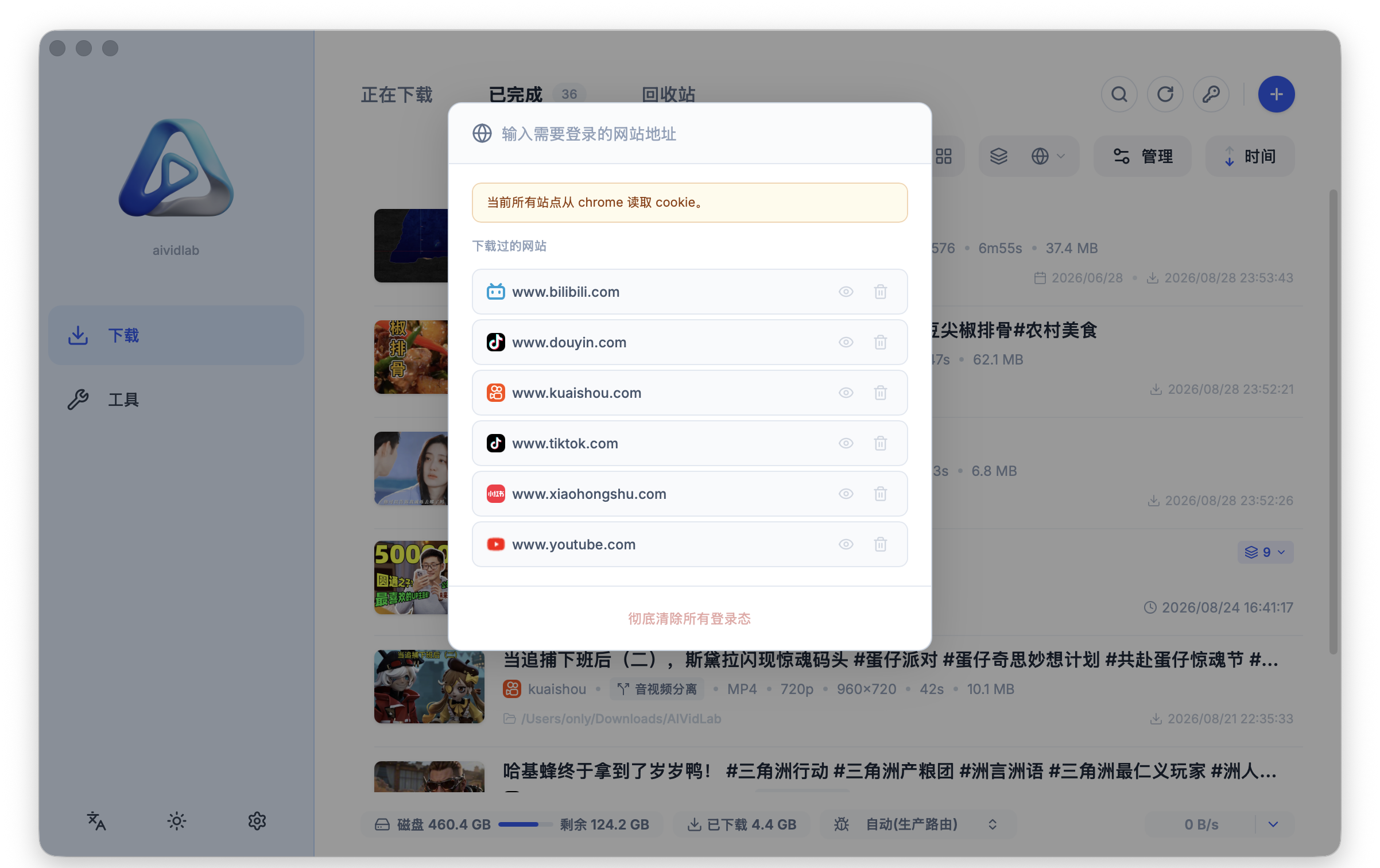
There are three cookie sources:
| Source | Description |
|---|---|
| Built-in browser | Log in to each site directly in aividlab's built-in browser window; login sessions are kept automatically |
| System browser | Reads cookies from browsers you're already logged into, such as Chrome, Edge, or Firefox on your computer — no need to log in again |
| Cookie file | Export a cookies.txt file with a browser extension and import it; useful when the browser's encryption prevents cookies from being read directly |
Switching to the System Browser (Chrome Example)
- Click the gear icon in the top-right corner to open "Settings", and find "Cookie source" on the "General" page.
- Select "System browser"; the panel shows the browser currently in use (e.g. "Current: Chrome"), and "Change browser" lets you switch to Edge, Firefox, and others.
- On first use, macOS shows a Keychain authorization prompt — enter your login password and click "Always Allow".
- Content that requires login will then automatically use the login session of the selected system browser; no need to log in again inside the app.
Reading cookies from Chrome / Edge / Brave requires system authorization (macOS Keychain / Linux keyring); Firefox needs none. If a browser version is too new to read from, use the cookie file method described below instead.
How to Get cookies.txt (Cookie File Method)
- Install the Get cookies.txt LOCALLY extension in your system browser (available in both the Chrome and Edge stores).
- Open the target video site and make sure you're logged in.
- Click the extension icon and choose Export to save the
cookies.txtfile. - Back in aividlab, choose "Cookie file" as the cookie source and pick the file you just exported.
Clearing Login Sessions
In the "Visited sites" list of the "Browsers" panel, you can view or clear cookies per site, or clear all login sessions at once. After clearing, also log out of the site in your browser, otherwise the login session will be restored automatically the next time you parse a link.
Site-Specific Download Notes
Bilibili
- Just paste a video link to download it.
- If parsing fails or the quality list is incomplete, the content requires login: follow the prompt to log in to your Bilibili account in aividlab; one login is kept automatically afterwards.
- Collections and multi-part videos are detected automatically as collection tasks, with "Sync collection" to fetch new parts added by the uploader in one click.
Douyin
- Just paste the share text obtained via "Share → Copy Link" in the app; the link is detected automatically.
- Some videos require login to view — follow the prompt to log in.
- A browser window opens during parsing; complete any CAPTCHA manually and the window closes automatically once verified.
Kuaishou
- Just paste a video link to download it.
- For some videos a browser window opens during parsing; complete any CAPTCHA manually and the download continues automatically.
Xiaohongshu (RedNote)
- Just paste a note or video link to download it directly.
YouTube
- Public videos can be downloaded by simply pasting the link.
- Some content requires login. If parsing fails, click "Log in browser" in the prompt and pick a system browser you're logged into that account with (e.g. Chrome); aividlab reads its cookies to gain access, no need to log in again inside the app.
- Due to platform restrictions, some logged-in content is only available at lower quality — access takes priority over quality.
- If parsing reports "suspected bot", use "Log in browser" to select a logged-in system browser and try again.
- If cookies from Chrome or similar browsers can't be read due to encryption, use the cookies.txt file method instead (see above).
TikTok
- Some content requires login to download — just follow the prompt to log in to your TikTok account in aividlab.