Video Playback
Downloaded videos don't need a separate player — you can play them right inside aividlab.
Playing a Video
- Switch to the "Completed" tab.
- Hover over the task you want to watch and click "Play video" in the action buttons on the right.
- The player opens as a full-window overlay and the video starts playing automatically.
Player Controls
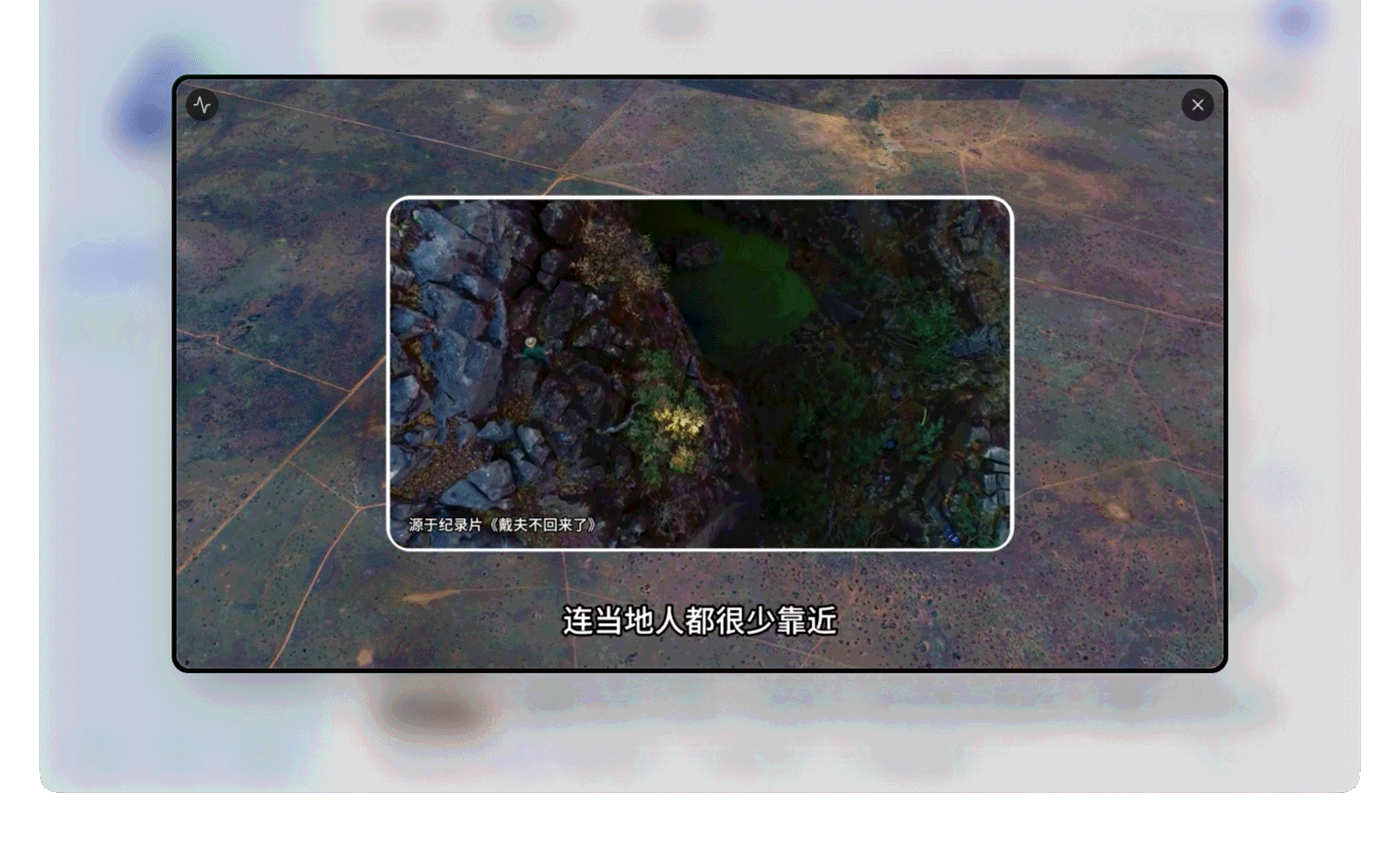
The control bar at the bottom, from left to right:
- Play / Pause
- Current time / total duration with a draggable progress bar
- Rewind 10 seconds / Fast-forward 10 seconds
- Volume control and mute
- Playback speed: six levels — 0.5x / 0.75x / 1x / 1.25x / 1.5x / 2x
- Subtitles: switch or turn off subtitles here when the video has subtitle tracks
- Fullscreen
Click the "Close" button in the top-right corner to exit the player; pressing Esc works too — in fullscreen the first press of Esc exits fullscreen, and a second press closes the player.
Playback Tips
- Position memory: each video remembers where you left off and resumes from that point the next time you open it.
- Automatic audio/video sync: for tasks downloaded with "Separate audio and video", the app automatically aligns the separate audio track with the video during playback — no manual work needed.
- Automatic subtitle loading: subtitles saved during download load automatically; switch them in "Subtitles" on the control bar.
- Format notes: a few rare codecs may not be playable directly, and the app will show a message. On Windows, if playing an HEVC (H.265) video for the first time says an extension is missing, just install the "HEVC Video Extensions" as prompted by the system and try again. On Fedora, if you get audio but no picture, your system is missing the H.264 decoder — follow the Linux install guide to fix it.